
The short answer
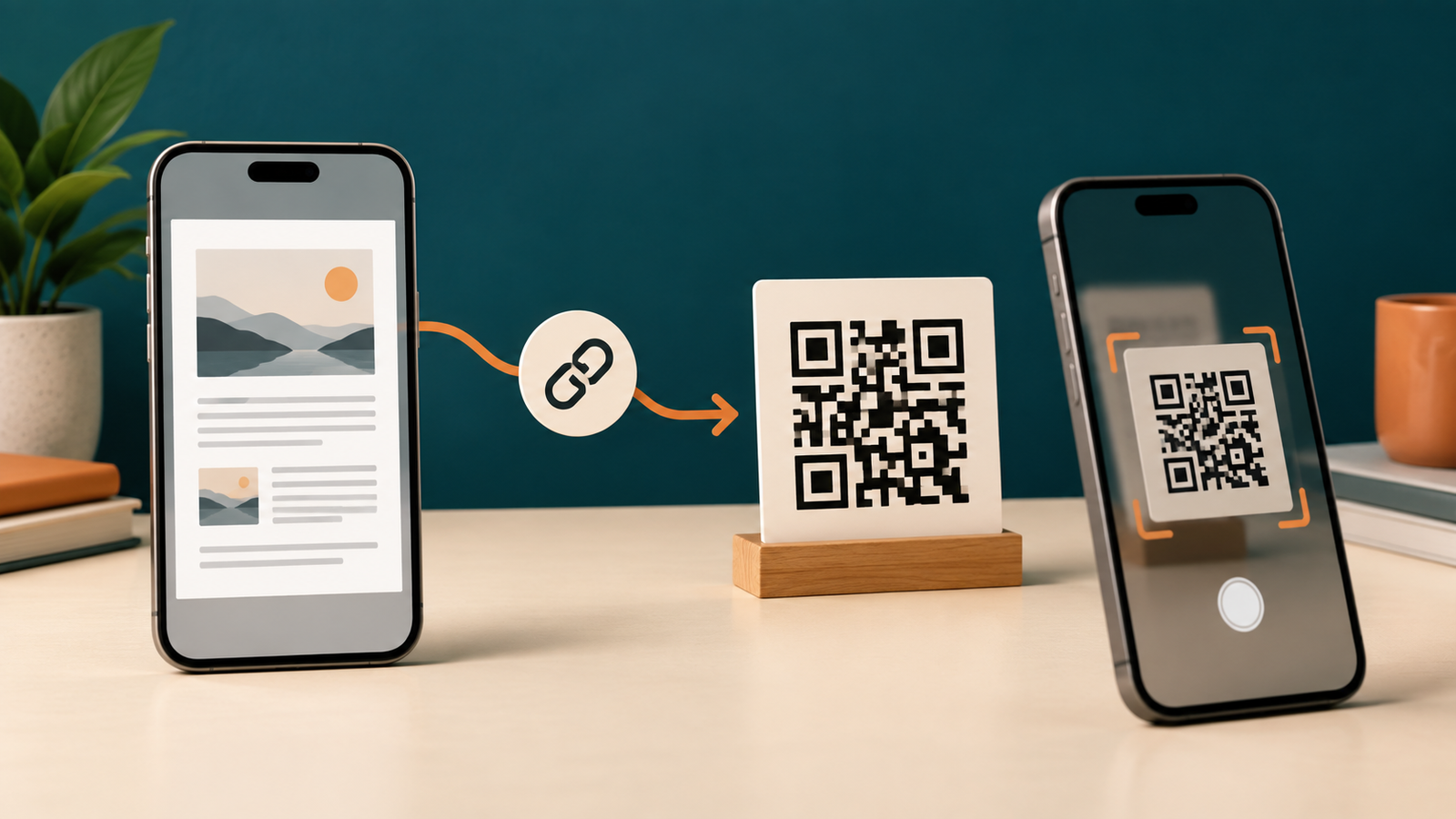
Put the PDF at a link, then turn that link into a QR code.
- Upload or publish the PDF wherever your intended readers can open it.
- Copy the complete link and check its sharing permission in a private browser window.
- Open Cam PDF QR Studio, choose a website QR code, and paste the link.
- Save the QR image, scan it from another phone, and only then print or distribute it.
This distinction prevents a common mistake: a QR code points to a document location; it does not magically host a large PDF inside the black-and-white pattern.
01
Make a PDF link that your reader can actually open
Choose the storage location before you design the QR code. A public menu or brochure can use a public URL. A private contract, identity document, or school record should not be placed behind a QR code that anyone can scan unless the access controls are intentional.
Use a stable public URL
Good for menus, event programs, product instructions, and documents meant to be shared.
Check the permission model
A QR image can be copied, so do not mistake an obscure link for document security.
Keep the destination steady
If the link changes, a static QR image will need to be generated again.
The same principle appears in Adobe's PDF-to-QR explanation: the code is a convenient way to share a document link, not a replacement for hosting the document.
02
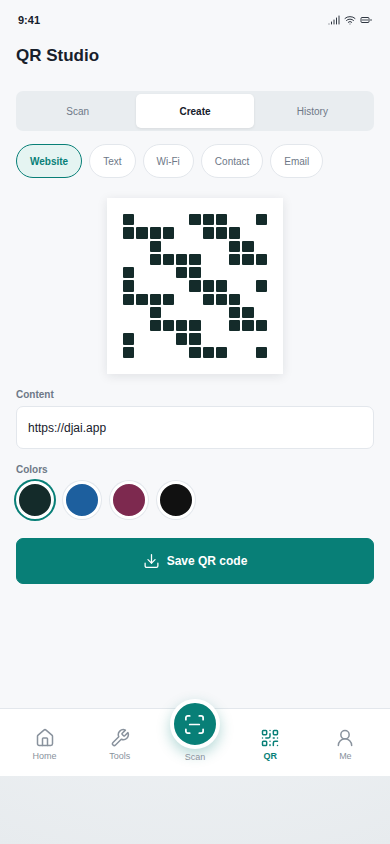
Generate the website QR code in Cam PDF
Cam PDF's QR Studio supports website links along with text, Wi-Fi, contact, and email payloads. For a PDF workflow, choose the website option because the destination is the link you just checked.
- Open Cam PDF and enter QR Studio.
- Select the website or URL type.
- Paste the full PDF link, including its secure
https://address where available. - Review the preview and save the generated QR image.
03
Test the code before you put it on a poster
A QR code can look perfect on your screen and still fail when printed too small, placed on a busy background, or scanned from a distance. Test the exact final image and the exact destination, not just a preview inside the generator.
Use a second phone
Scan the saved image from the device that will receive the PDF.
Open the document
Confirm that the PDF loads without an unexpected sign-in or permission screen.
Test the final size
Try the printed version before making a large batch of copies.
04
Know what Cam PDF does—and what it does not do
Cam PDF creates the QR image on the phone. It does not host the PDF or promise that a destination link will remain public forever. You choose where the file lives, who can open it, and how long that link should remain available.
For a document you revise often, keep the destination under your control and update the file at the same URL when that is safe and supported. If you change the URL itself, create and test a new QR image before replacing printed material.
If you need to make the PDF first, start with the multi-page scanning guide. If the document needs a signature before it is shared, continue with the scan, sign, and send workflow.
05
Questions about PDF QR codes
Can a QR code contain the entire PDF?
For normal document sharing, treat the QR code as a link to the PDF. The file remains hosted at the destination and opens when the reader scans the code.
Can I use a QR code for a private PDF?
You can, but a printed code can be photographed and shared. Use a destination with the access controls your document requires and test the exact reader experience.
What if my PDF link changes later?
A static QR image still points to the old URL. Update the file at the original link when possible, or generate and distribute a new QR image.
Next step
Create the code from the phone you already use
Cam PDF QR Studio can create and save a website QR code after you copy your PDF’s link. That keeps the workflow in one mobile app without pretending that the QR code itself stores the entire file.
Cam PDF exports without an added Cam PDF watermark. An account, advertising, and a weekly export allowance apply; check the app's access model before you start a time-sensitive document task.
The verified download link above is for Android. The guide remains useful on iPhone, but the App Store CTA will be added only when its public listing is live.