The short answer
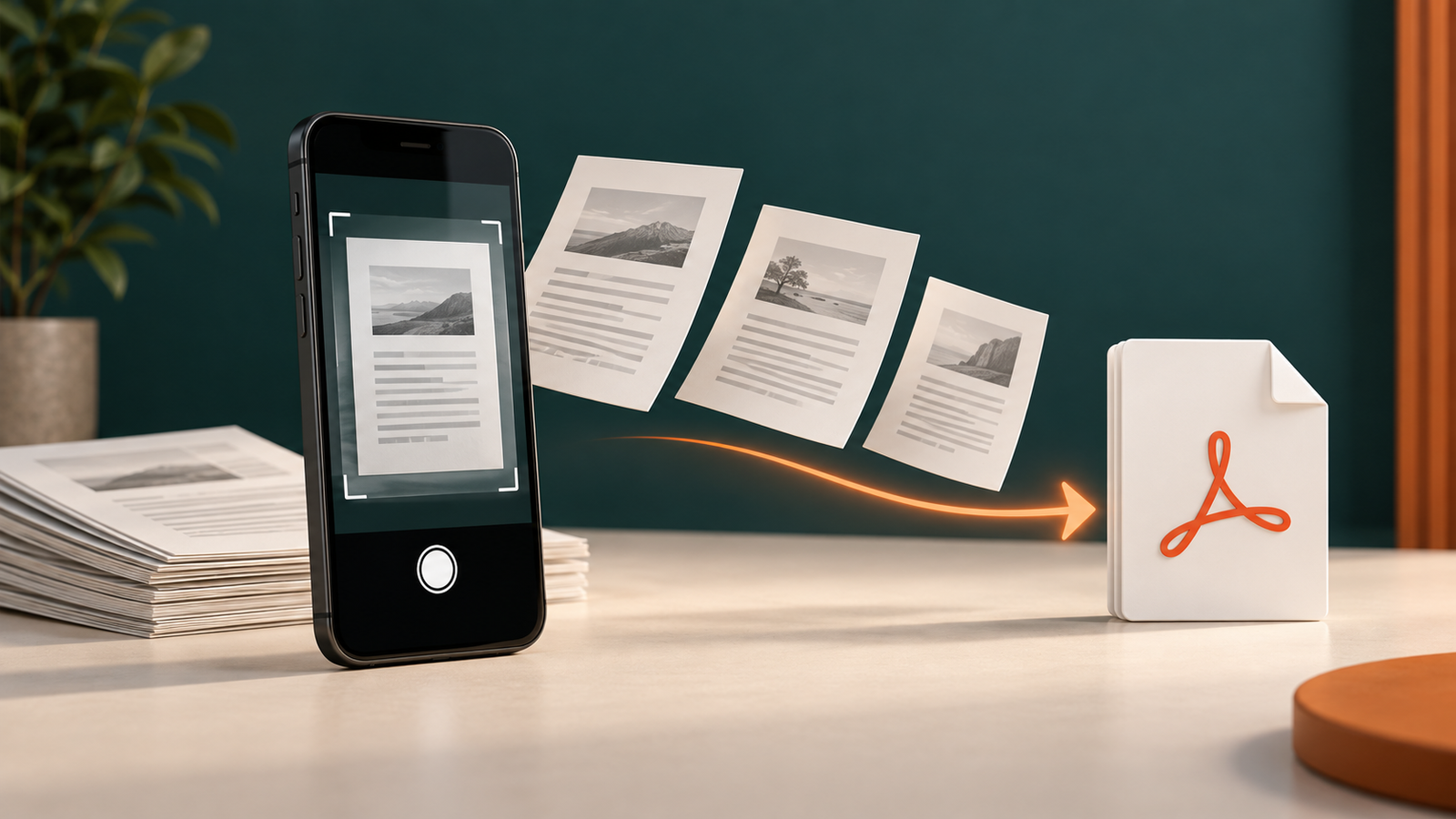
Start one scan, keep adding pages, and save once.
- Open Cam PDF and choose the document scan flow.
- Capture the first page, then use the add-page action for every following sheet.
- Review thumbnails, page order, corners, and readability before exporting.
- Save as one PDF, then compress or share the finished file if its size is a problem.
The important detail is the save point. Do not export each page separately unless that is genuinely what the recipient needs.
01
Prepare the stack before you open the camera
Put the pages in order, remove clips and folded corners, and choose a surface that gives the camera a clear contrast around each sheet. Even light matters more than a dramatic filter: a shadow across a signature or small number is difficult to fix later.
Number the pile mentally
Keep the first page visible and place the next sheets within easy reach.
Remove hard shadows
Turn the page or move the light before relying on automatic enhancement.
Leave all corners visible
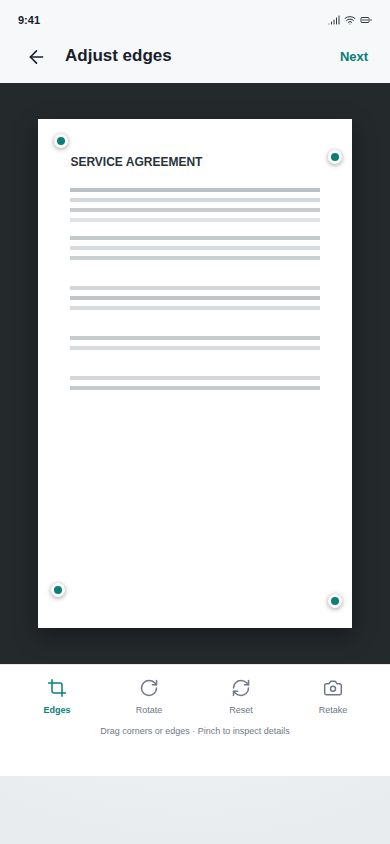
Edge correction can only work with enough margin around the page.
02
Capture every page in the same document
After the first capture, keep the document open and add the next page instead of starting a new file. Pause briefly between pages so the camera can focus. If a page is skewed or blurry, retake it while the rest of the stack is still beside you.
- Align the phone parallel to the page and wait for the edge outline to settle.
- Capture the page, then check its thumbnail before moving the paper.
- Tap the add-page control and repeat until the last sheet is captured.
- Use the page editor to rotate, crop, or remove a duplicate before export.
Cam PDF supports multi-page capture and page organization, but the quality of the source still determines whether the final file is useful. A PDF can be technically complete and still fail because one page is unreadable.
03
Check page order and legibility before saving
Thumbnail review is not busywork. It is where you catch a missing page, a reversed page, a finger over a corner, or a crop that cut off a date. Zoom into the smallest text and any area where a signature, seal, or account number matters.
Read the first line of each page
Use headings, dates, or page numbers to confirm that the sequence makes sense.
Inspect the four corners
Make sure borders, stamps, and handwritten notes have not been trimmed away.
Zoom into the smallest detail
A readable phone preview is not enough if the exported page becomes soft.
04
Export one PDF, then solve the file-size problem
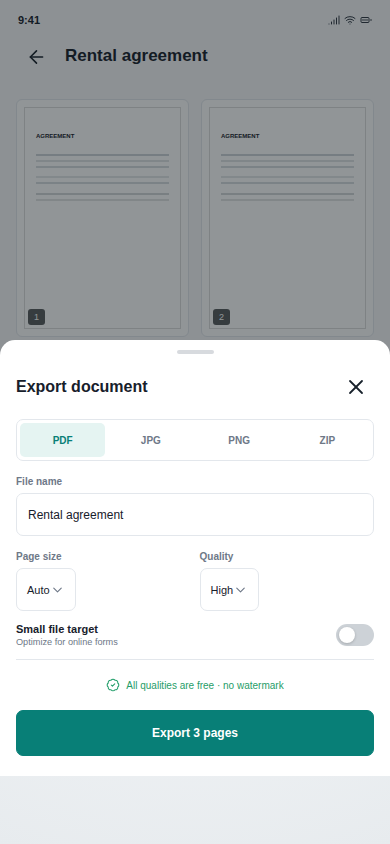
Give the file a useful name before you export it. Choose the page size and quality that fit the job, then open the finished PDF outside the editor and inspect it once more. If an upload form rejects the file, use the site's PDF compressor rather than repeatedly lowering scan quality at capture time.
If your source pages already have a third-party watermark, keep the original and read the safe watermark guide before editing an official or sensitive document. A clean export is not worth changing the meaning of a record.
Cam PDF's current product page describes multi-page scanning, page correction, named PDF exports, compression, and sharing. Usage conditions still apply, so do not promise an unlimited export workflow to a reader.
05
Questions people ask after the first scan
Can I scan multiple pages into one PDF without a physical scanner?
Yes. A phone camera and a document-scanning app can capture each sheet, keep the pages together, and export one PDF.
Why is one page missing from my multi-page PDF?
Usually the page was never added to the capture session, was removed during review, or was saved as a separate file. Check the thumbnail count before exporting.
Should I scan the pages again if the PDF is too large?
Not immediately. Try a PDF compressor first, then recheck that small text and signatures are still readable.
Need a different next step? See the complete Cam PDF workflow before choosing another app.
Next step
Keep the whole document in one place
Cam PDF is built for the handoff between camera capture, page correction, PDF export, and sharing. Open the product page first if you want to confirm the current access model, then install from Google Play.
Cam PDF exports without an added Cam PDF watermark. An account, advertising, and a weekly export allowance apply; check the app's access model before you start a time-sensitive document task.
The verified download link above is for Android. The guide remains useful on iPhone, but the App Store CTA will be added only when its public listing is live.