The short answer
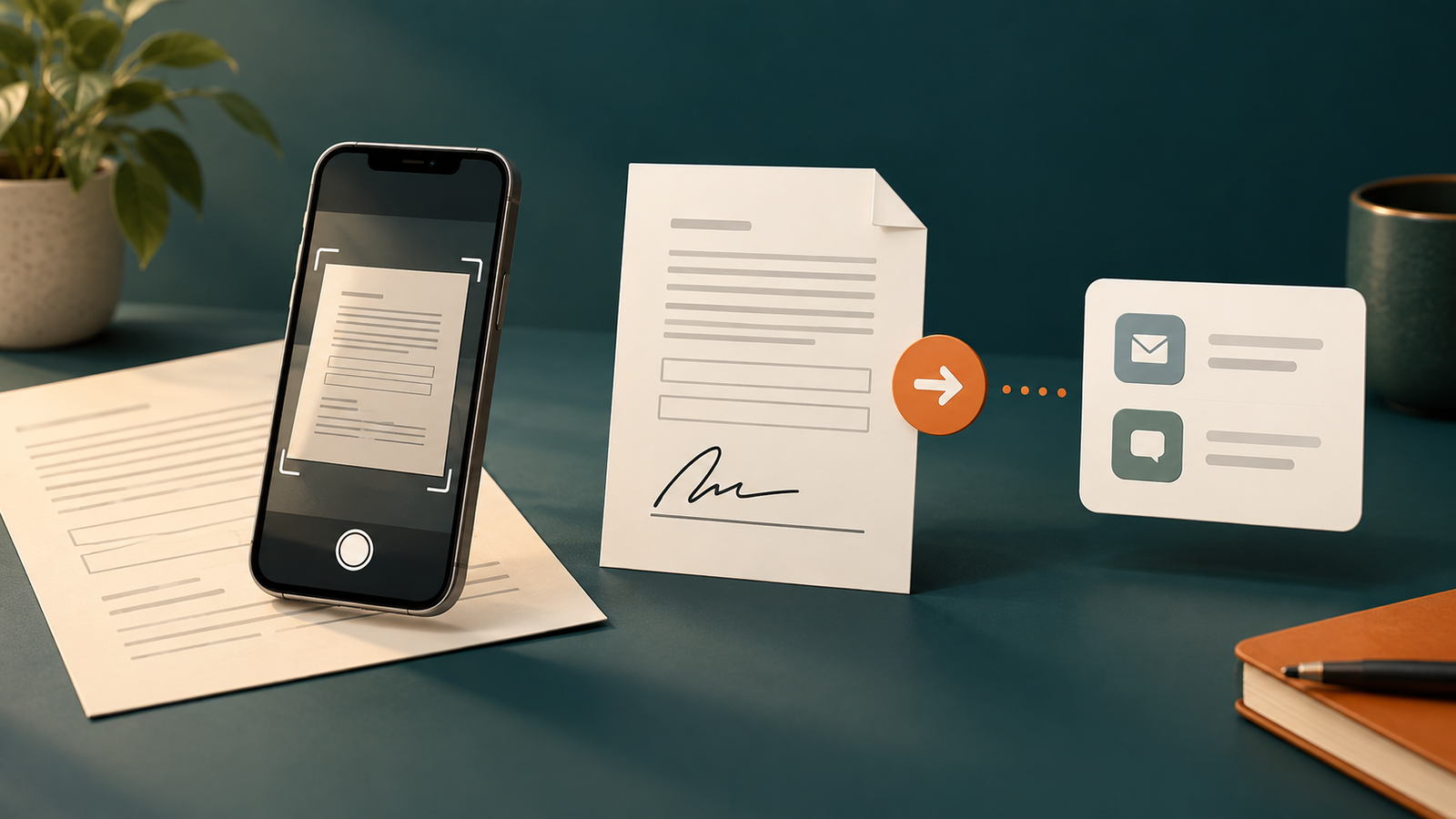
Capture or import the document, sign it, then inspect the exported PDF.
- Scan the paper or import the PDF into Cam PDF.
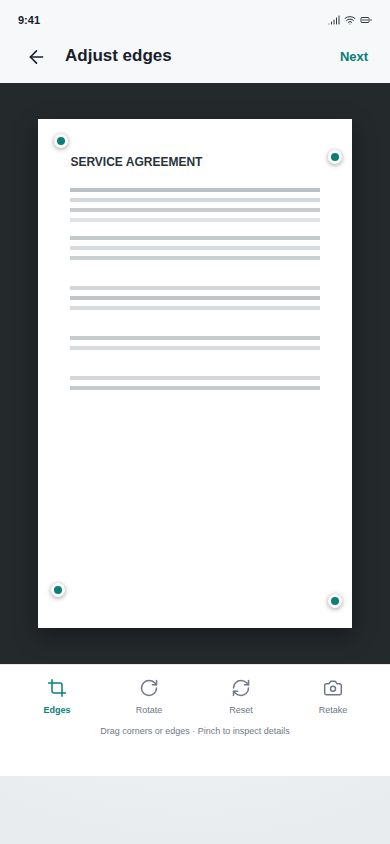
- Correct the page edges and add any needed text or date.
- Draw or select your signature and place it on the intended line.
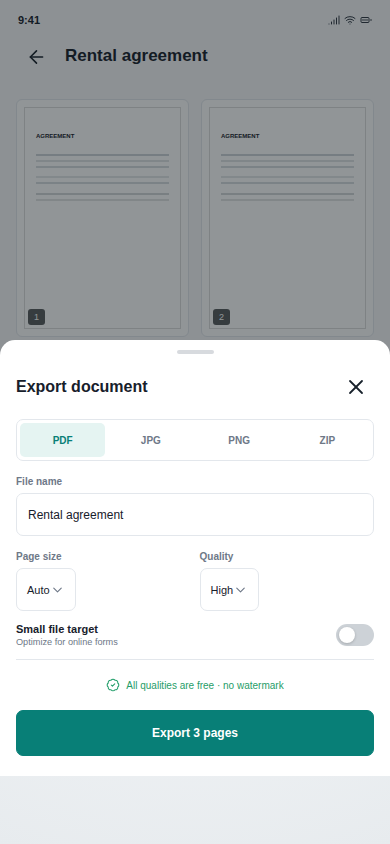
- Export a PDF, open the finished file, and share only after the review passes.
This workflow describes an in-app signature annotation. It is not a promise that every recipient, government office, or contract accepts it as a certificate-based electronic signature.
01
Capture the paper or import the PDF
If you have paper, start with a clean camera capture. Keep the phone parallel to the form, include all corners, and use even lighting. If the form already arrived as a PDF, import it instead of taking a screenshot; that preserves the document's original page size and text quality.
Keep the page flat
Remove shadows and wait for the document edges to settle before taking the picture.
Review the crop
Make sure the signature line, dates, and small labels are still inside the page.
Name the document
Use a filename that tells you what the form is before it leaves the app.
02
Place the signature where the recipient expects it
Open the signing controls, draw a signature, and place it on the correct line. Resize it only as much as needed. A signature that covers a printed name, date, checkbox, or witness field can make an otherwise complete form difficult to process.
- Zoom in until the signature field is easy to place accurately.
- Add the signature and move it without covering nearby instructions.
- Add a date or text only where the form asks for it.
- Review every page, not just the page where you signed.
If the recipient requires a verified certificate, audit trail, witness flow, or identity check, use the signing service they specify. Cam PDF is a practical mobile PDF workflow, not a replacement for those requirements.
03
Review the exported file before you send it
The editor preview and the exported PDF are two different checkpoints. Save the file, open it in a PDF viewer, and confirm that the signature, page order, text, and orientation all survived the export.
Check every page
Make sure no page disappeared and no crop removed a field or attachment.
Confirm position and scale
Look for overlap with the printed name, date, seal, or instructions.
Open the actual PDF
Do not trust a download until the file opens and looks correct outside the editor.
04
Send the PDF with the right privacy and size choices
Choose a useful filename and export quality. If an email or upload form has a size limit, compress the finished PDF and inspect it again. Then use the share action to send it through the channel the recipient requested.
Do not upload a private identity, financial, medical, school, or signed document to an unrelated online editor just to add a signature. The safest workflow is the one that gives you a clear view of where the file goes and leaves the final share decision with you.
Need to sign a stack of pages? First follow the multi-page PDF workflow. Need to share the finished document by scan? Use the PDF QR-code guide and check the link permissions before printing it.
05
Questions about signing PDFs on Android
Can I sign a PDF without printing it first?
For ordinary signature annotations, yes: import or scan the document, add the signature in the app, export the PDF, and review it before sharing.
Is a drawn signature the same as a certificate-based e-signature?
No. A drawn signature is an annotation. A certificate, identity check, audit trail, or formal signing workflow may be required for a particular recipient or agreement.
How do I send a signed PDF that is too large?
Export the file, use a PDF compressor, then open the compressed copy and confirm that the signature and small text remain readable.
Next step
Finish the document without changing apps
Cam PDF combines scanning, page editing, signatures, PDF export, compression, and sharing in one mobile workspace. Use the workflow below for a normal handwritten signature annotation, then verify the recipient’s requirements before sending.
Cam PDF exports without an added Cam PDF watermark. An account, advertising, and a weekly export allowance apply; check the app's access model before you start a time-sensitive document task.
The verified download link above is for Android. The guide remains useful on iPhone, but the App Store CTA will be added only when its public listing is live.